
Browse all guides
ARRANGE & STYLE
Taps & pages
Tap a button on your Home Screen and the widget changes. No app needed.
In this guide
A widget with more than one side#
A widget is small. Taps make it hold more: today’s events on one tab and the month on another, a forecast that turns over to show the week, a card that flips to its back.
Everything happens on the Home Screen. The widget changes in place, without opening the app. What a tap did stays until the next tap.
Give something a tap#
Select it
Tap a text, an icon, a shape or a group on the canvas.
Open Tap
Tap Tap in the toolbar.
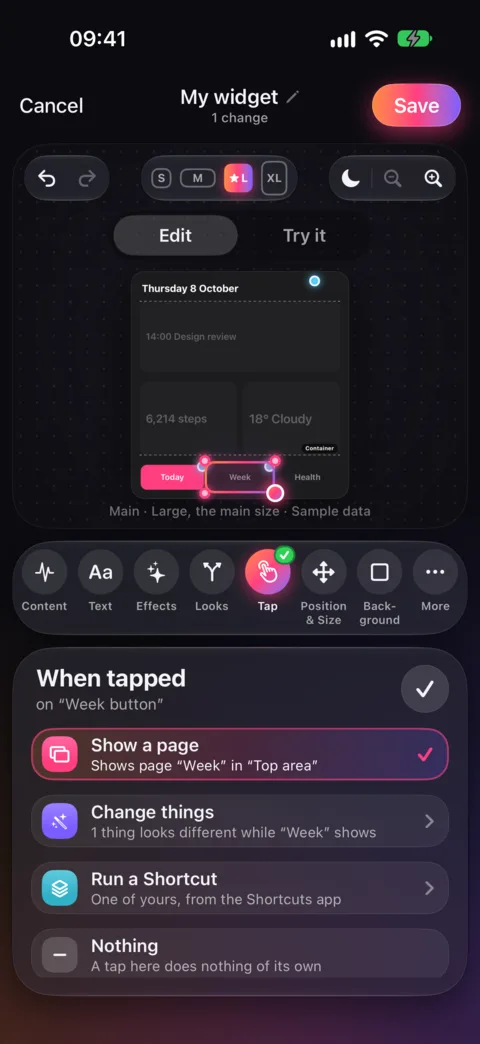
Choose what happens
Under When tapped, choose one:
- Show a page
- Another page takes over: the whole widget, or a part of it.
- Change things
- Hide, move, resize or restyle anything. Tapping the same thing again puts it back.
- Run a Shortcut
- Runs one of yours from the Shortcuts app.
- Show the next photo
- For a photo from a photo set: the set’s photos move on.
- Nothing
- The usual. A tap does nothing of its own.
Pages for the whole widget#
Choose Show a page → New page, or Add → Group & List → Page. A new page takes over the whole widget when tapped, and comes with a ‹ Back button, so nobody gets stuck.
Your pages sit in the strip under the canvas, next to Main, the widget itself. Tap one to edit it: the canvas shows that page, and what you add goes on it. Next page moves on one page with each tap, then starts over.
Tabs: change only a part#
Sometimes only part of the widget should change, like the area under a row of tabs. Tap Add → Group & List → Container: an area that shows one page at a time. Move and size it like any layer, then add its pages.
Give each tab a Show a page tap that picks one of the container’s pages. Everything around the container stays. Choose which page it starts with.
To make the chosen tab stand out, select it and design how it looks while its page shows, such as a brighter fill. The Gallery’s Tabs collection is full of examples.
Anything else can change with the page too, like a knob that turns or a title that changes. Select the container, open Pages, tap a page and choose Change things around it: change what you like on the canvas while it records, then tap Done. However the page is shown, by a tab, a Next page tap or any button, those changes apply while it shows. A Next page tap offers the same under How things look on each page.
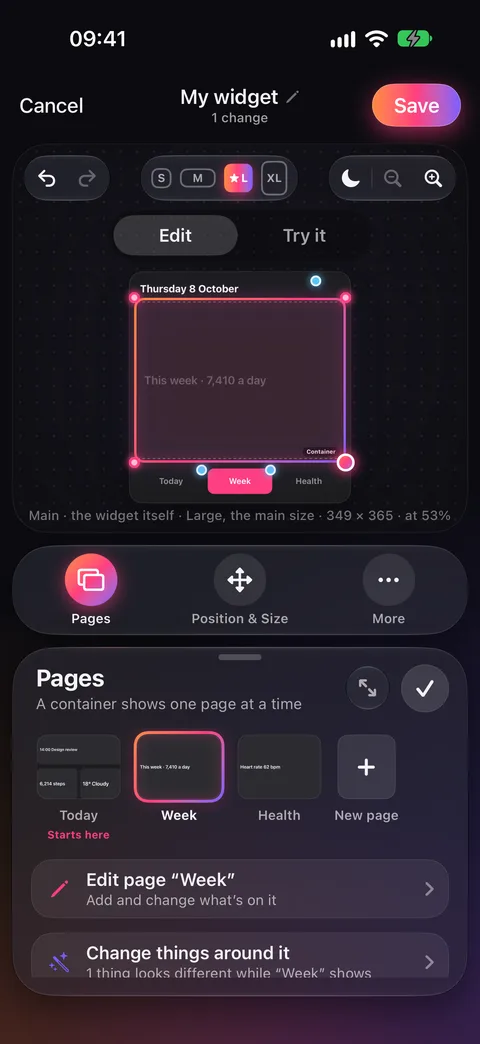
Pick a page, then edit it or change things around it. Today is the one it starts with.
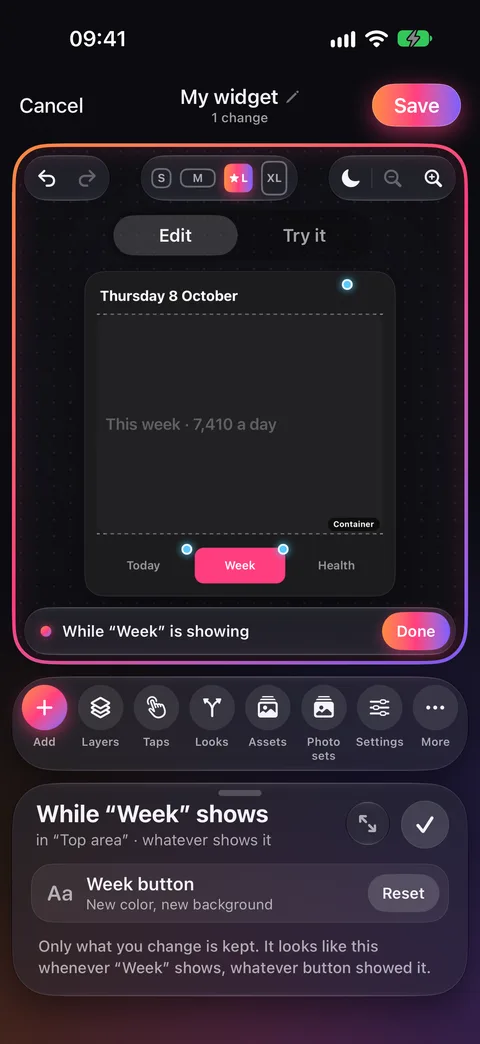
While Week shows, the Week tab gets a new color and background.
Change things#
Choose Change things, and the canvas starts recording. Tap anything on your widget and change it: hide it, move it, make it bigger, restyle it. Only what you change is kept, and a list shows each change.
On the Home Screen, the first tap makes those changes. The next tap on the same thing puts them back. Reset beside a change removes it from the list.
Run a Shortcut#
Choose Run a Shortcut and type its name exactly as it is in the Shortcuts app. When tapped, Widget Ninja opens for a moment, then your Shortcut runs.
A Small widget can only have one link, so a Shortcut there runs from a tap anywhere on the widget. Pages and Change things work on every size.
Try it before you save#
Once your widget has a tap, an Edit and Try it switch appears over the canvas. Choose Try it, and the canvas behaves like your Home Screen widget: tap your buttons and watch what happens. Start over resets the preview.
With nothing selected, the Taps tool in the toolbar lists everything in the widget that does something when tapped, and the pages each one shows.
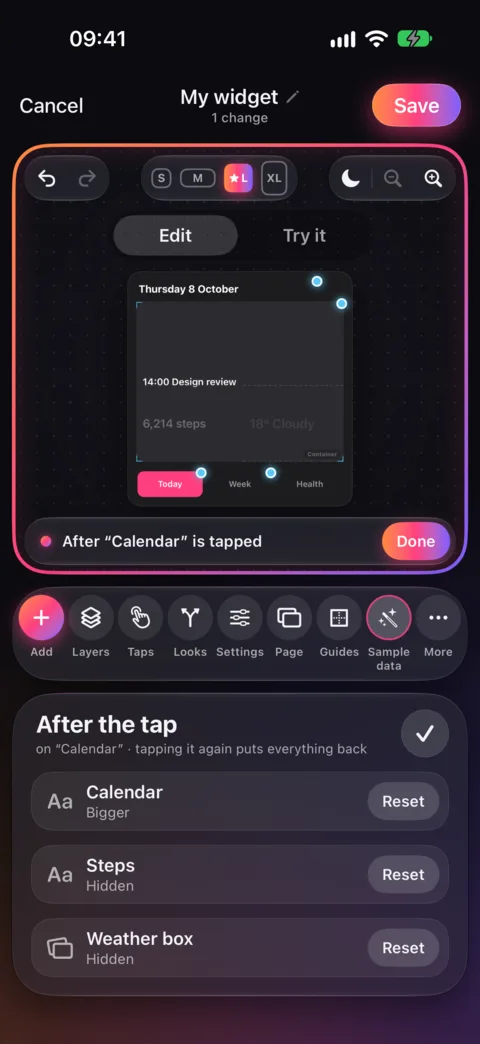
Everything you change while recording is listed, with Reset.
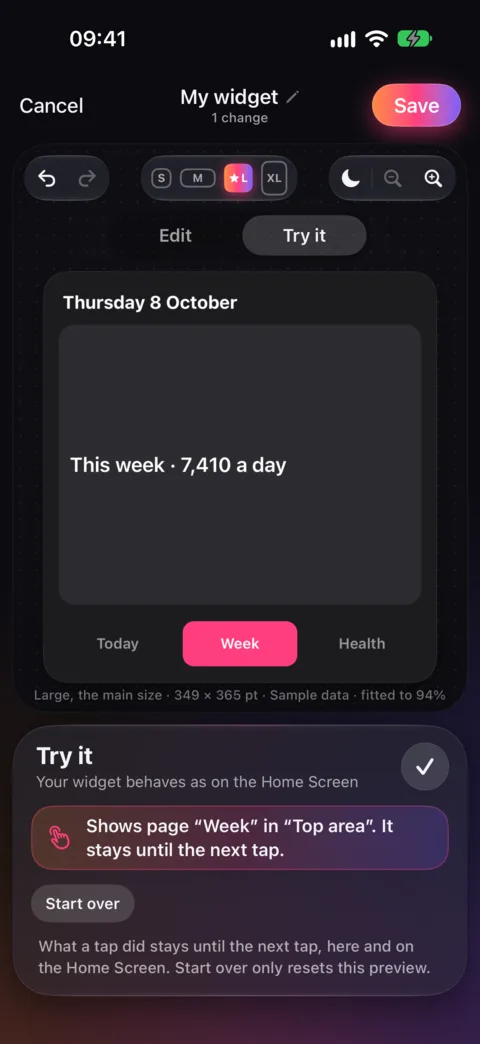
Tap Week on the canvas and the top area shows the Week page.
Checked against the app · October 24, 2026.
Screenshots use example data or the app’s test image.