
Browse all guides
ARRANGE & STYLE
Layers & actions
Find what’s on the widget, even when you can’t tap it on the canvas.
In this guide
See the pieces that make up your widget#
Think of a photo with a date written over it. The photo and the date are separate layers: you can change one without changing the other. The photo needs to sit behind the date so the words remain visible.
Layers is a list of those pieces. Use it when a piece is behind another, too small to tap, or hidden. Renaming pieces—for example, “Background photo” and “Today’s date”—makes a busy design easier to navigate.
Open a saved widget in Library, then tap Design Visually. Selecting a piece in Layers gives it the same tools as selecting it on the preview.
Open Layers#
On a phone, tap the empty canvas area outside the widget preview to leave any selection. Then tap Layers in the toolbar below the preview. In the editor’s wider layout, the layer list is already visible beside the canvas. Tap a layer to select it.
Change the order#
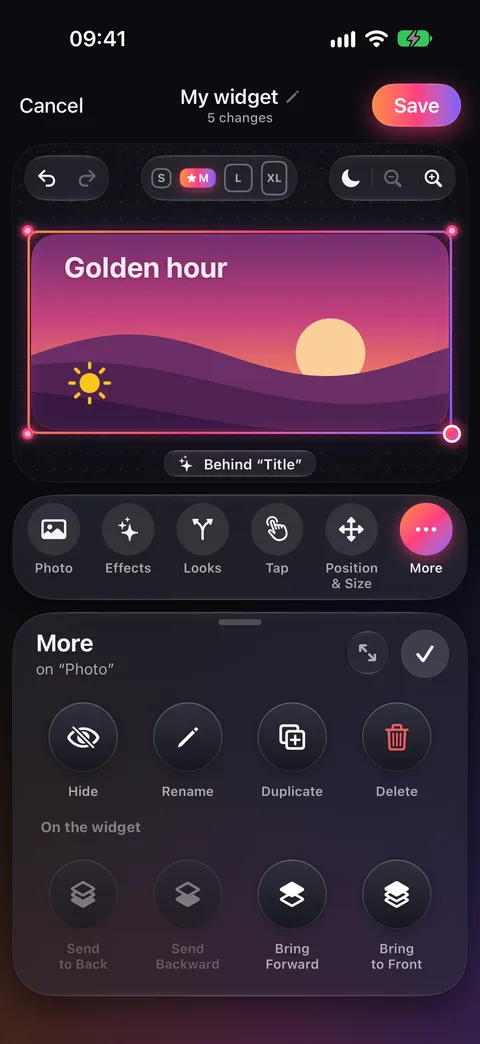
Hold and drag a layer in the list to reorder it. Drop it on a group to move it inside. Or select the layer and open More, or tap the three dots beside it in Layers:
- Bring Forward, Send Backward
- One step in front of, or behind, the next layer it overlaps. Layers it doesn’t touch are skipped, so every step changes what you see. The app says where it went, such as “In front of “Photo””.
- Bring to Front, Send to Back
- All the way to the front, or behind everything.
- In a group
- Side by side, the actions are Move Left, Move Right, Move to Start and Move to End. Stacked, they are Move Up, Move Down, Move to Top and Move to Bottom.
What a tap on the canvas selects#
A tap selects what’s drawn under your finger, starting with whatever is in front. The see-through parts of a picture or drawing don’t count, so tapping blank paper next to an illustration selects what’s really there.
Tap the same spot again to select the group it’s in, then what’s behind it. If something is hard to reach, select it in Layers.
Layer actions#
In Layers, tap the three dots beside a piece’s name to see its actions. The eye button beside it hides or shows the piece. You can also select a piece and open More in the toolbar.
- Hide / Show
- Hide the layer without deleting it, or show it again.
- Rename
- Give it a name that is easy to recognize in Layers.
- Duplicate
- Make another copy of the added layer.
- Delete
- Remove the added layer. Undo can bring back the edit.
- Reset Changes
- For parts of an existing page, remove the changes you made to that part. Those parts have different actions from layers you added.
Select several layers#
Tap Select in Layers, then pick layers in the same place. Tap Group them. Read the Groups guide for arrangements and moving things into a group.
Widget More and layer More#
With a layer selected, More acts on that layer. With no layer selected, More offers Sample data, Edit HTML, and Reset All Edits for the widget. Check the tray’s subtitle before changing something.
Checked against the app · October 24, 2026.
Screenshots use example data or the app’s test image.