
Browse all guides
DATA & OTHER TOOLS
Stand
Your widgets, big and live, for the desk or the bedside table.
In this guide
A display for your desk#
Stand fills your iPhone’s screen with one of your widgets, drawn big, with its colors glowing around it. Lean the phone on something and it becomes a little display: your next event, the weather, a photo from this week years ago.
It draws again every minute with your own data, and the screen stays on while Stand shows.
Open Stand#
Open a widget
In Library, open one of your saved widgets.
Tap Stand
Tap the display button at the top of its page, next to the circular arrow. Stand opens with that widget.
Close it
Tap Done to go back to the widget’s page.
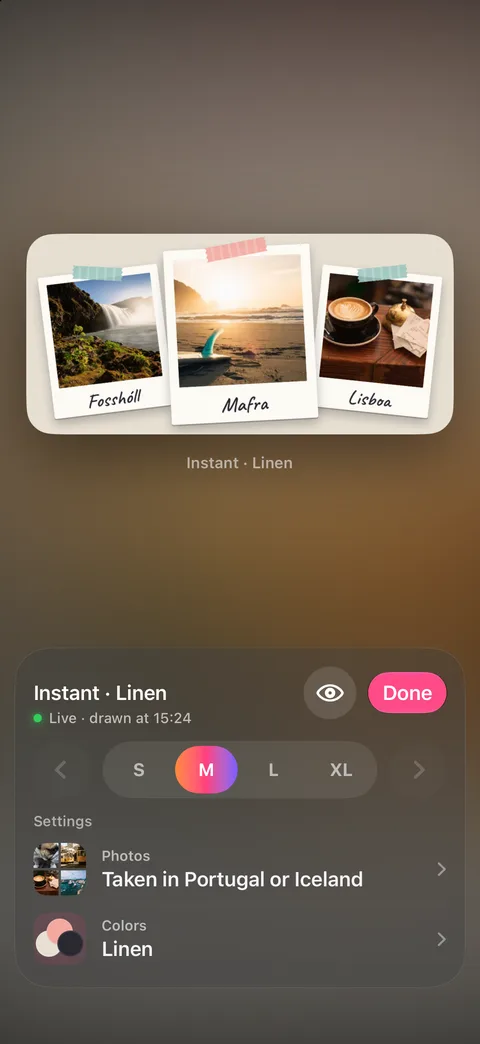
Go through your widgets#
- Your widgets
- Swipe the widget, or tap the arrows beside the sizes, to go through everything in your Library. With more than one widget, a row of them shows too: tap one to show it.
- Sizes
- Show the widget as Small, Medium, Large or another size it has.
- Settings
- Change the widget’s own settings, such as its photos, driver or colors, right there. Changes are saved at once.
- Preview only
- Tap the eye to hide every control so only the widget shows. Tap anywhere to bring them back.
On an iPhone Duo#
Fold an iPhone Duo like a small laptop and Stand puts the widget on the upper half and the controls on the lower half, resting on the table. Held open like a book, the widget is on the left page.
On other iPhones, the widget takes the larger part of the screen: the left when the phone is on its side, the top otherwise.
Checked against the app · October 24, 2026.
Screenshots use example data or the app’s test image.