
Browse all guides
ADD TO YOUR WIDGET
Photo sets
Tell the widget which of your photos to use. It finds them in your library every time it draws.
In this guide
A widget that finds your photos#
A photo you add from your library is one picture. It stays the same until you change it. A photo set is different: it’s a rule, like “photos taken in Portugal” or “this week, in earlier years”. Each time the widget draws, it looks in your library for photos that match, so new photos join on their own.
One set can feed several photos on the same widget, and each shows a different photo from it. Texts can say where and when each photo was taken: “Lisbon, 3 years ago”.
The quickest start is the Gallery’s Photos collection: fifteen designs already built on photo sets. Change which photos they use in Settings, without the editor.
Make a photo set#
Open Photo sets
In the editor, with nothing selected, tap Photo sets in the toolbar, next to Assets. The number on it says how many sets the widget has.
Tap New photo set
Choose how to start: Pick photos yourself, An album, A place, A time, Favourites, On this day, or Everything. Each choice shows what your library has, such as “19 countries” or “2009–2026”.
Narrow it down
The set’s screen shows how many photos it has. Add more filters with + Where, + When, + Album and the rest. Every filter must match, so each one makes the set smaller.
Use it
Tap Add a photo, 2 photos, 3 photos or A grid on the set’s card to put its photos on the widget. A set stays in the widget, used or not, until you delete it.
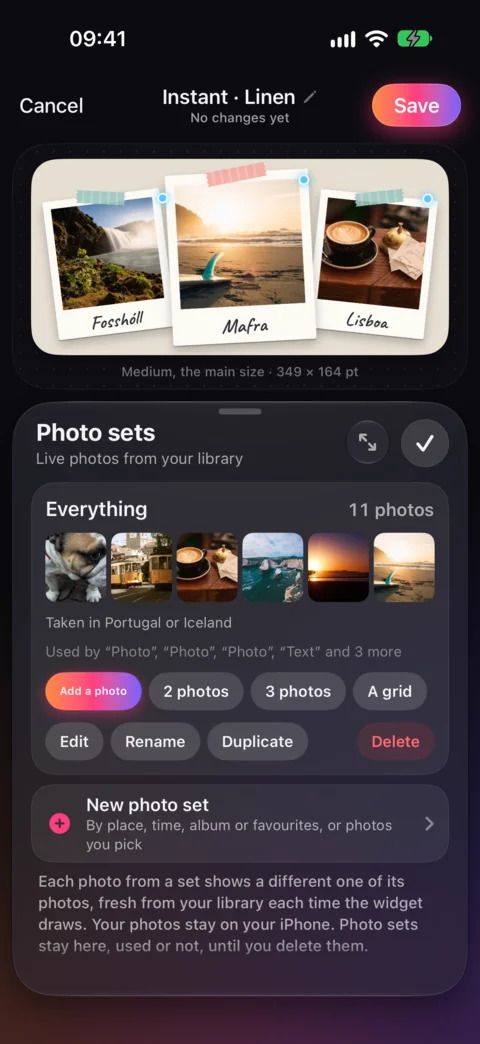
Each set with its photos and what uses it · sample photos.
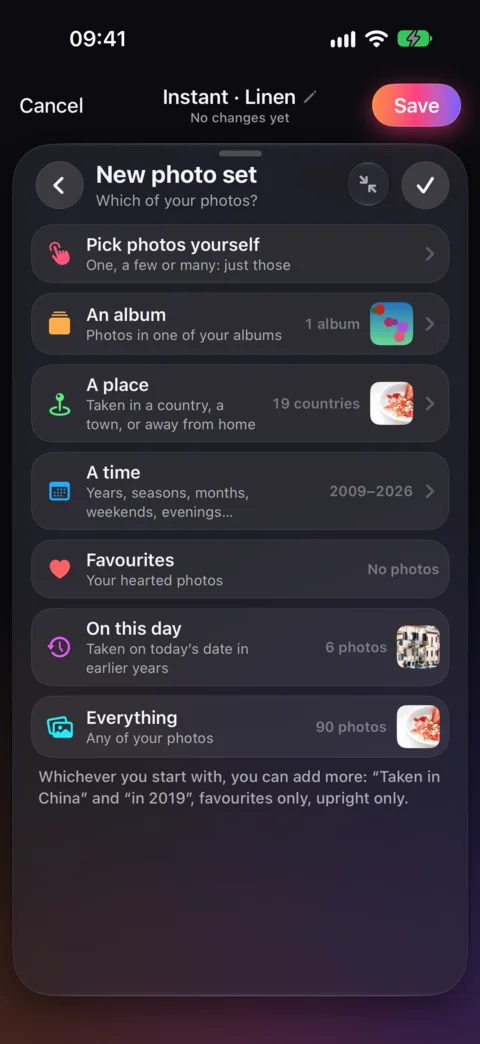
Start from a place, a time, an album or your favourites.
Choose by place, time and more#
Each filter has its own screen. Every choice on it shows how many photos the set would have with it, so you see an empty choice before you pick it.
- Where
- Country, with the countries in your library. Town or place and how far around it. Near here, Away from home, or only photos that Have a place.
- When
- Years, Seasons, Months, Days (weekends or weekdays), Time of day, Recent, and Dates from and until. Memories has On this day, this week in earlier years, years ago, a date every year, and one of your Special days.
- Album and Kind
- One of your albums or shared albums. Kind uses the albums Photos keeps itself, such as Selfies, Portraits or Panoramas.
- Favourites, Stars and Edited
- Only your hearted photos, photos with enough stars, or photos you edited.
- Keyword and Caption
- Photos whose keywords or caption include a word you type.
- Shape
- Only upright, wide or square photos, for a space of that shape.
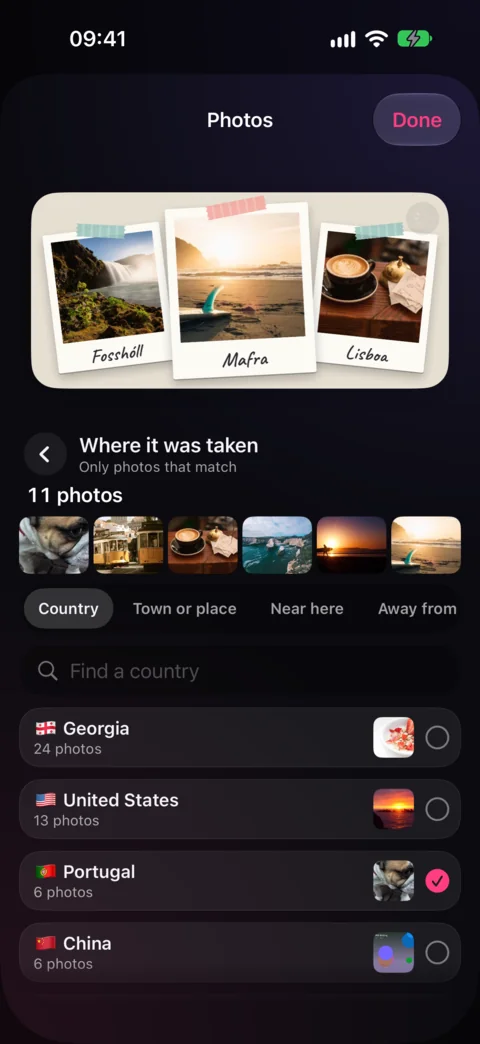
Countries from your library, with counts · sample photos.
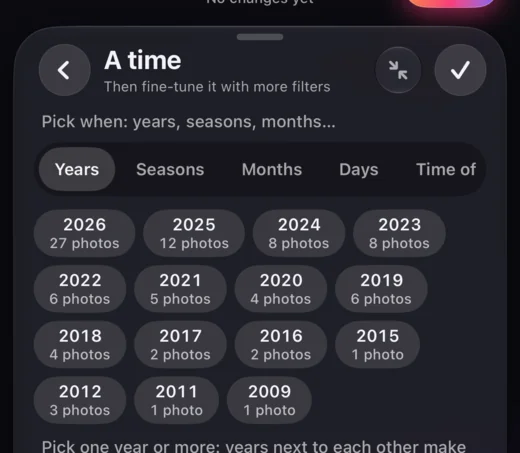
Years with how many photos each has.
Put its photos on the widget#
Tap Add → Photos & Icons → Image from photo set. It lists the widget’s sets with their photos, and the same Add a photo, 2 photos, 3 photos buttons. With no set yet, tap Make a photo set first; its photo is placed once the set is made.
Photos from one set are placed side by side in an empty part of the widget, in one step you can undo. Each shows a different photo. Move and size them like any photo, and use Photo → Fit and Focus for which part shows.
Choose which photo, and how often#
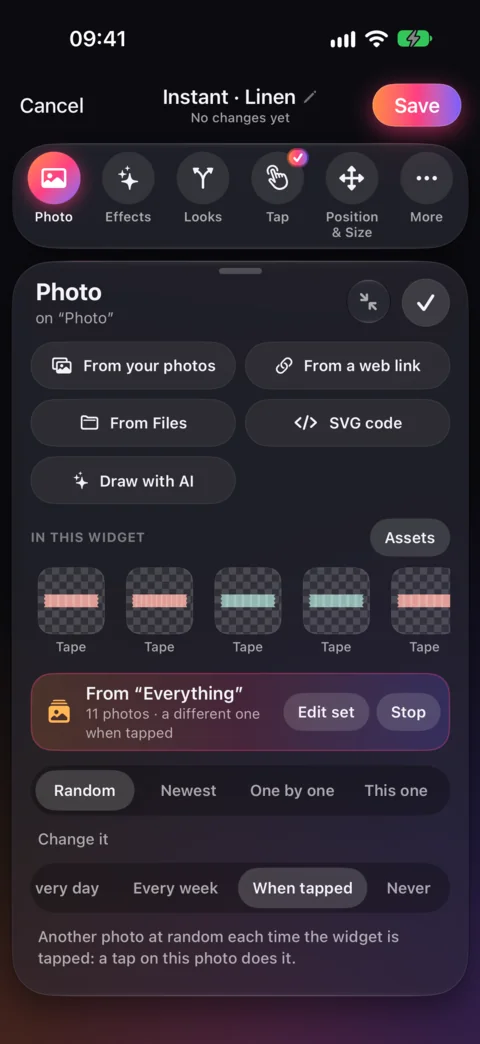
Select a photo from a set and tap Photo in the toolbar. The panel says which set it comes from, with Edit set and Stop. Stop turns it back into an ordinary photo.
- Which photo
- Random, the Newest, One by one through the whole set, or This one: a photo you choose from the set.
- Change it
- Every update, Every hour, Every day, Every week, When tapped, or Never. The sentence under it says what happens.
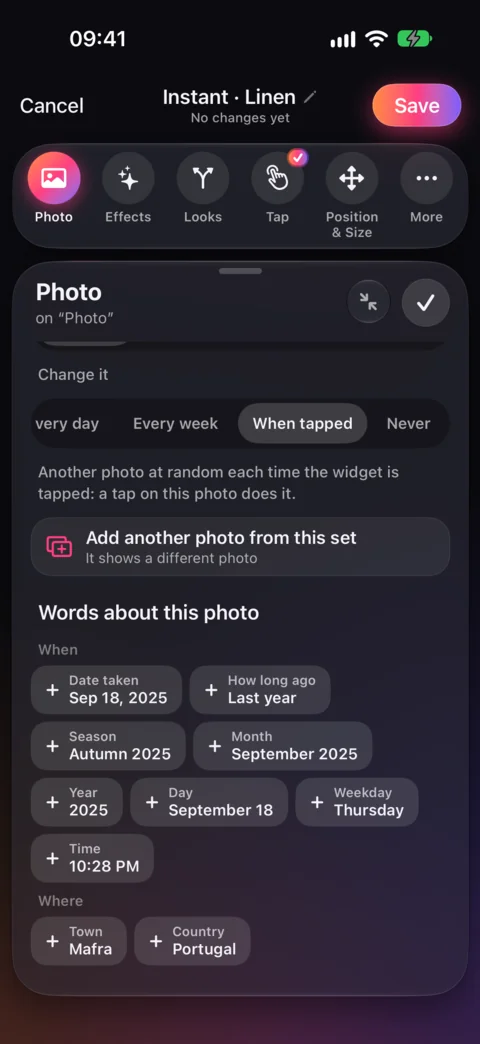
- Add another photo from this set
- Puts one more photo from the same set on the widget. It shows a different photo.
Say where and when it was taken#
Under Words about this photo in the same Photo panel, tap a choice to add a text that follows that photo. Each shows what it would say right now.
- When
- Date taken, How long ago, Season, Month, Year, Day, Weekday and Time.
- Where
- Town and Country.
- The photo and the set
- The photo’s caption, the set’s name, or how many photos it has.
To change an existing text, select it and open Content; with several photos on the widget, choose which photo it’s about. A photo without a place has no town to show, so a design that names the town works best with a set of photos that have one.
A grid or film strip of photos#
Tap Add → Group & List → List and find Photos. Each set is offered as a Grid, a Film strip or a List, or you can make a new set. A set’s card in Photo sets also has A grid.
Select the list and open List → Shows to choose its set and order: Newest first, Oldest first or Random. List → Spacing sets the gap between the photos. More about lists.
Tap for the next photo#
Select a photo from a set, tap Tap in the toolbar and choose Show the next photo. Or choose When tapped under Change it. On the Home Screen, a tap moves the set’s photos on, and every photo on that set that changes when tapped moves with it.
Use Try it over the canvas to tap through before you save. More about taps.
Let it be changed without the editor#
A photo set can be a setting. Then anyone can change which photos the widget shows from its page in Library: pick another album, a place, a time, or start over. The Gallery’s Photos designs come with this setting. Read the Settings guide.
Your photos stay on your iPhone#
The first time, the app asks to see your photo library. Choose Allow Full Access, or share only some photos; then the set screens say how many you shared and offer Choose more.
Your widgets read your library on your iPhone. Small copies of the photos they show are kept in the app’s storage on the iPhone, so the widget can draw them. Your photos are not sent to us. When you use AI on a widget, the pictures the AI sees show sample landscapes in place of your photos.
A set is saved as its rule, so a widget you share fills with the other person’s photos. Photos you pick by hand are found only on the iPhone you picked them on. Check access.
Checked against the app · October 24, 2026.
Screenshots use example data or the app’s test image.