
Browse all guides
START HERE
Widget Settings
Change what a widget follows in a tap. Or decide what others can change in yours.
In this guide
The few things you’d actually change#
Most days you don’t want to redesign a widget. You want it to follow another driver, count to a different birthday, or show the weather back home. Settings are those few choices, pulled out of the design and put one tap away.
A setting changes the same widget you already have. Nothing is rebuilt and nothing else moves. The editor is still there when you want more.
Change a setting#
Open your widget
In Library, open a saved widget. Its Settings are near the top of its page.
Tap a setting
A sheet opens with the choices and a live preview of your widget.
Pick and close
Choose which photos, a driver, a city, a goal, a color or a day, then tap Done. Your Home Screen updates as soon as you’re done.
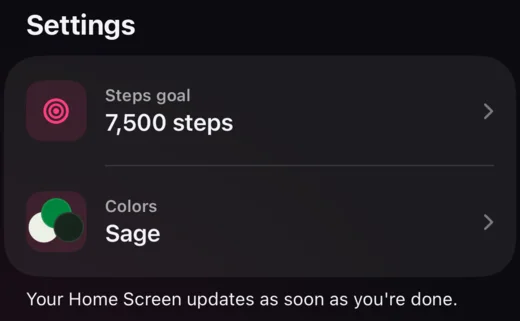
On your widget’s page in Library, near the top.
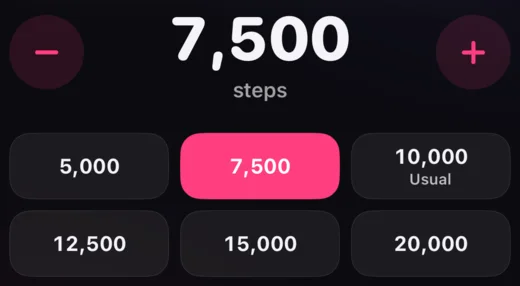
Here, a step goal: tap a suggestion or use − and +.
Pick them before you add#
Many Gallery designs show a Settings card on their page. Pick your driver, your goal or your city there, and your copy starts out that way. Settings that need your own data, such as your calendars, switch the preview to My data so you can see them.
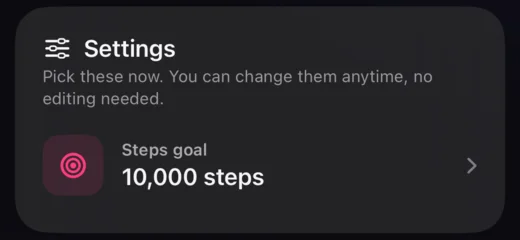
The Settings card on a Gallery design.
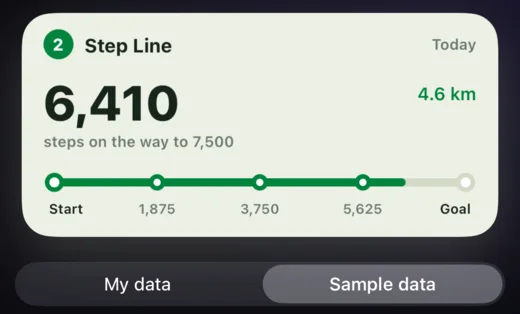
With a 7,500 goal, the stations move too · sample data.
Copies of Gallery designs come with settings already picked from what’s in them. A copy of a design with a color story or a pet can also switch those later.
Choose which photos#
A widget with a photo set can have a Photos setting, and every design in the Gallery’s Photos collection has one. It opens the same screens as the editor, with a live preview of your widget above them.
- Narrow it down
- Add filters such as Where, When, Album or Favourites. Every filter must match. Each choice shows how many photos it would leave.
- Hide a photo
- Tap a photo under Its photos to stop showing it.
- Start over
- Start again from an album, a place, a time, your favourites, or photos you pick yourself. The widget keeps everything else.
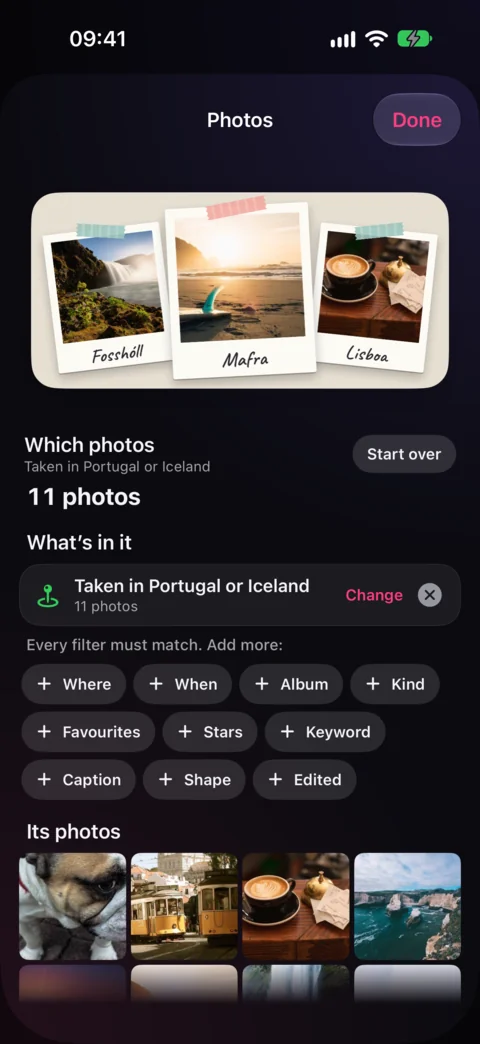
The set’s filters and its photos · sample photos.
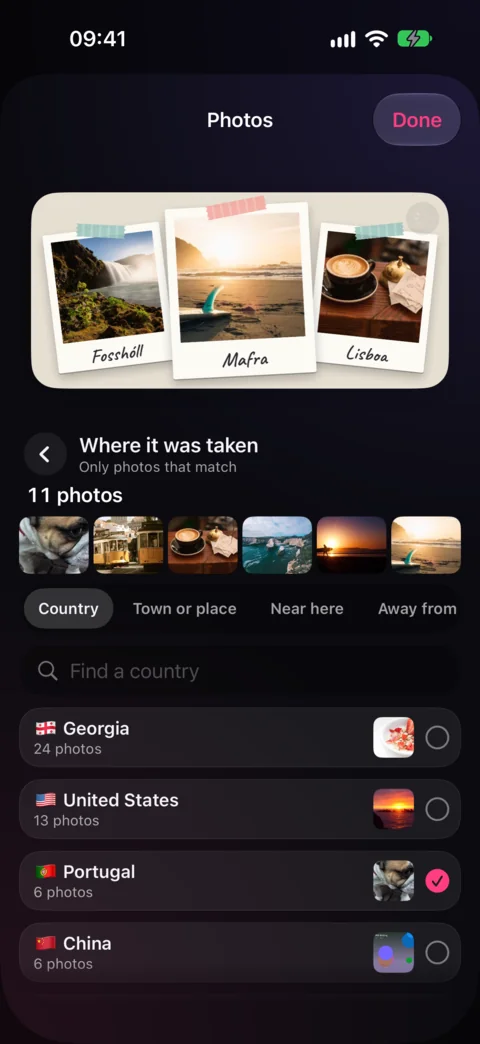
Countries from the library, with counts.
What can be a setting#
- From the web
- Which driver or team, which currencies, which Wikipedia language. Anything a web data request lets you choose.
- Days
- The special day a countdown counts to, which ones a list of days shows, or the holiday it waits for, such as Halloween.
- A word
- For a countdown to Calendar events: the word an event’s title must have, such as “flight”.
- Goal
- What counts as full. A new goal also moves the marks and numbers printed along the way.
- Place
- Where the widget’s weather is for. One choice moves all of its weather at once. More about places.
- Photos
- Which photos a photo set shows: an album, a place, a time, favourites or photos you pick.
- Calendars and lists
- Which calendars or reminder lists the widget reads.
- Text, photo and color
- A name, a greeting, a picture or a color in the design.
- Color story, pet and coat
- For copies of Gallery designs that offer them.
Make settings for your widget#
Anything you build can have settings too. Make them once, and changing your widget later takes a tap instead of the editor.
Open Settings in the editor
Open your widget in Design Visually. With nothing selected, tap Settings in the toolbar.
Add from the suggestions
Under Suggested for this widget, the app lists what it found in your design: a request to the web, a countdown’s day, a goal, a text, a photo, a color. Tap one to add it, such as a photo set or the weather’s place. Show More lists the other texts, photos and colors.
Name and order them
Each setting is a card. Rename changes what people see it called. Move Up and Move Down set the order on the widget’s page. Remove takes it out of Settings; the design keeps its current value.
Save
Tap Save. The settings appear on the widget’s page in Library.
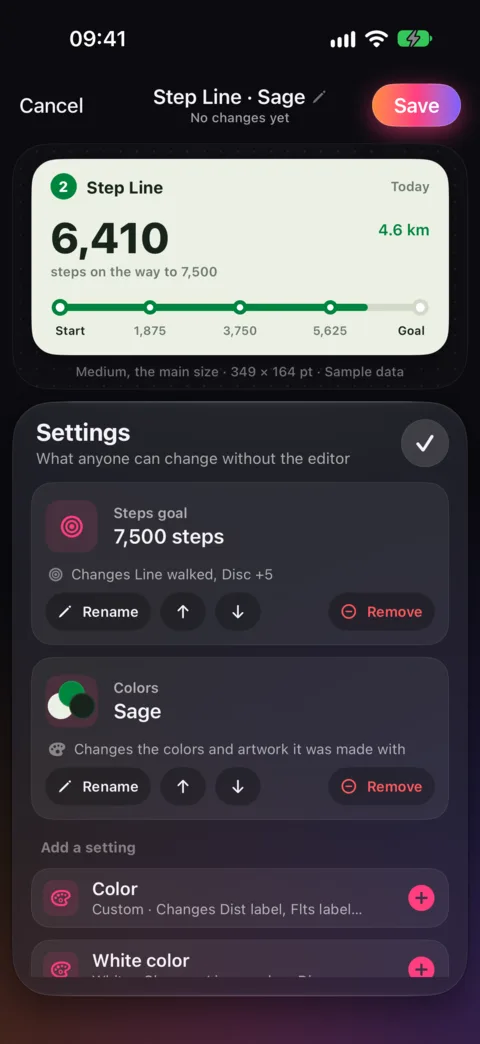
When you set up a web data request, the Show “…” in Settings switch adds its choice straight away.
Settings belong to the saved widget, so every Home Screen widget showing it changes together. Want two drivers side by side? Duplicate the widget in Library and pick another driver in the copy.
Checked against the app · October 24, 2026.
Screenshots use example data or the app’s test image.