
Browse all guides
DATA & OTHER TOOLS
Your data & access
Use your own values, and check what the app can read.
In this guide
Why a design can show examples instead of your values#
A step count needs records from Apple Health. An event list needs your calendars, and a weather forecast needs your location. These are the design’s data sources—the places its information comes from.
The editor can use Sample data: made-up readings and events that let you try a design before your own information is available. Turning it off asks the preview to use your actual sources instead. Access is the permission the app needs to read those sources.
For example, an empty heart-rate list may mean there are no recordings in the chosen period, not that your heart rate is zero. Work through the checks below to tell examples, missing access, and missing records apart.
Switch off sample values#
With nothing selected in the editor, tap More and turn off Sample data. The More button says On while sample data or the guides are on.
Gallery previews use example values to show the design. The examples are not a reading from your device.
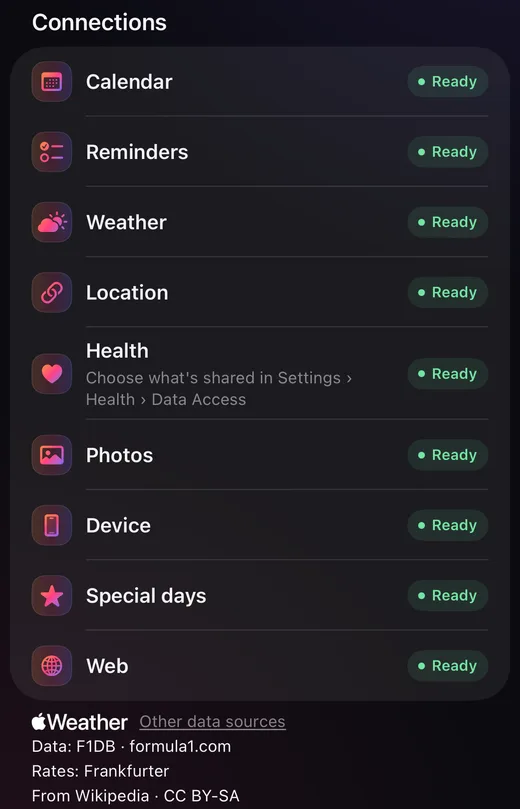
Check Connections#
Open Library → Connections. Each source shows its status. Tap Allow when offered and follow the system prompt. When access is off, the row says so and names the exact place to turn it on, such as Settings › Apps › Widget Ninja › Calendars; its Settings button opens Settings. If Screen Time or device management blocks a source, the row says that instead, since only whoever manages the iPhone can change it.
A saved widget’s detail page also shows Data this widget uses. These controls help you check the sources that design needs.
If a widget on your Home Screen can’t read its data, it says so in a small label along its bottom edge, such as “Calendar access is off · Tap to fix”. Tap the widget to open Data access in the app, with the fix for each source it needs.
Calendars set to Add Events Only can’t be read: choose Full Access in Settings › Apps › Widget Ninja › Calendars.
Check Health values#
A Health value needs a recorded reading for its selected period. Check the source data as well as access.
iOS does not tell the app which Health types it may read, so Connections shows Health as Asked, not Ready. If a reading is missing, review what Health shares with the app in Settings › Health › Data Access & Devices › Widget Ninja; Open Health opens the Health app.
If you chose Past 30 Days when Health asked, longer charts start 30 days back. If Background App Refresh is off for the app (Settings › General › Background App Refresh), Health widgets may only get new readings while the app is open.
Check weather and location#
Weather uses location access, unless the widget has a place of its own. Follow the app’s access controls. If a calendar’s weather controls report a failed forecast and offer Try again, tap it to retry. An unavailable forecast is different from zero.
If you chose Allow Once, widgets can’t update the weather by themselves. Choose While Using the App or Widgets in Settings › Apps › Widget Ninja › Location, and choose Allow if iOS asks whether widgets may use your location. If Location Services are off for the whole iPhone, turn them on in Settings › Privacy & Security › Location Services.
Check photos#
Widgets with a photo set need to see your photo library. The first time, iOS asks; the app explains: “Widget Ninja shows your photos in its widgets. They stay on your iPhone.” If you share only some photos, the photo set screens say how many and offer Choose more.
Your widgets read the library on your iPhone, and keep small copies of the photos they show in the app’s storage there. The photos are not sent to us. To name the town a photo was taken in, the app asks Apple’s maps service about the photo’s location.
If a set shows no photos, check access, then the set’s filters: every filter must match, and each choice shows how many photos it leaves. Gallery previews show sample photos until you allow access.
Check web data#
Web data needs no permission. The widget asks the web each time it draws. Without a connection it keeps showing the last answer it got, and can say how old that is, such as “Offline · 2 h ago”.
The services that answer are credited at the bottom of Library → Connections.
If a value is unavailable#
Check Sample data
Turn it off if you want your own readings.
Check access
Review the source under Connections or the access controls in the tool.
Check the range and filters
Try a period with recorded data. For calendars and lists, check the selected calendars, reminder lists, or measurement.
Check the source
Make sure the event, reading, or reminder exists in its source app.
Refresh a saved preview#
Open the saved widget in Library and tap the circular arrow at the top to redraw the preview. Its accessibility label is Render. The app also refreshes installed designs when they are saved and when it returns to the foreground.
A Home Screen widget does not update continuously.
Checked against the app · November 13, 2026.
Screenshots use example data or the app’s test image.