
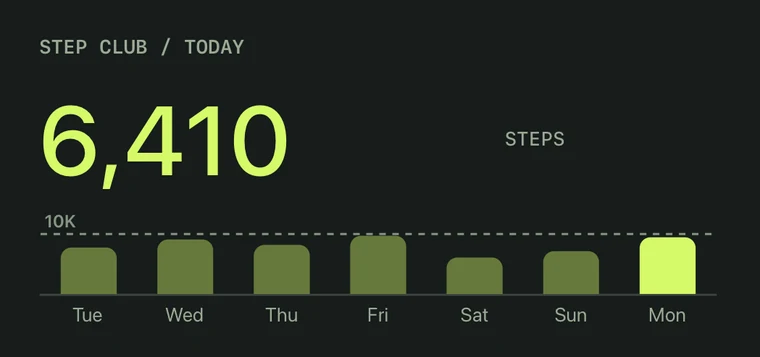
01 / HEALTH & ACTIVITY
Steps, sleep & the rest.
Steps, sleep, Activity rings, and workout history from Apple Health. Choose what you want to see.
Make a step counter widgetCUSTOM WIDGETS FOR YOUR IPHONE
Your calendar. Your steps. The weather outside.
Build a widget around your day, then make every detail your own.
Start with one of 223 Gallery designs, a blank canvas, or a sentence to the AI.
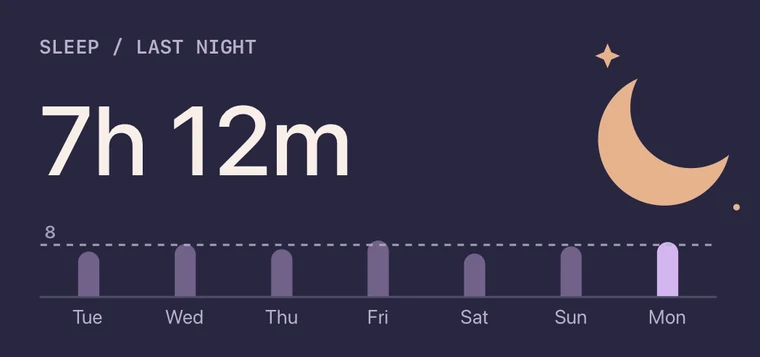
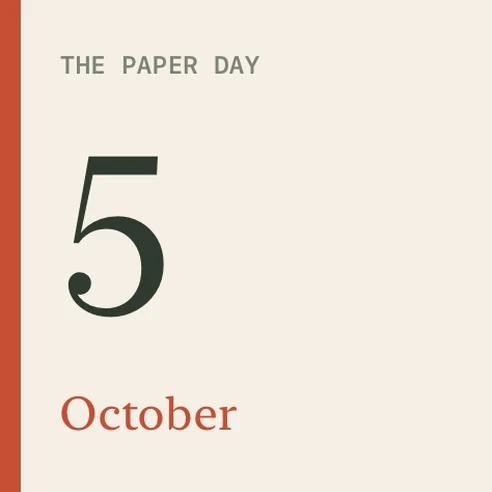
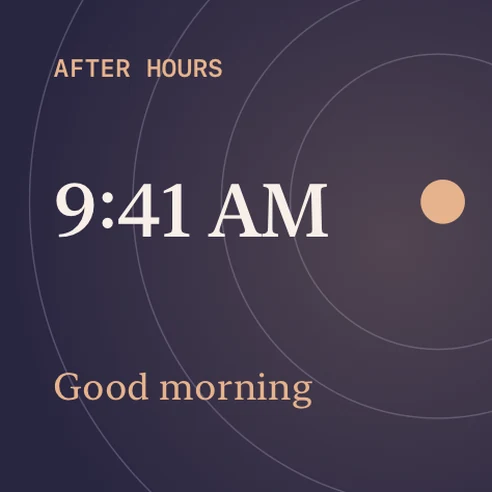
Widget previews show example data.
NEW IN THE GALLERY · PHOTOS
Fifteen new designs for the pictures already on your iPhone. An instant print you shuffle with a tap. This week, years ago. A postcard from the town you were in.
Choose an album, a place, a time of year or just your favourites. The widget finds the photos on your iPhone every time it draws, and they stay there.





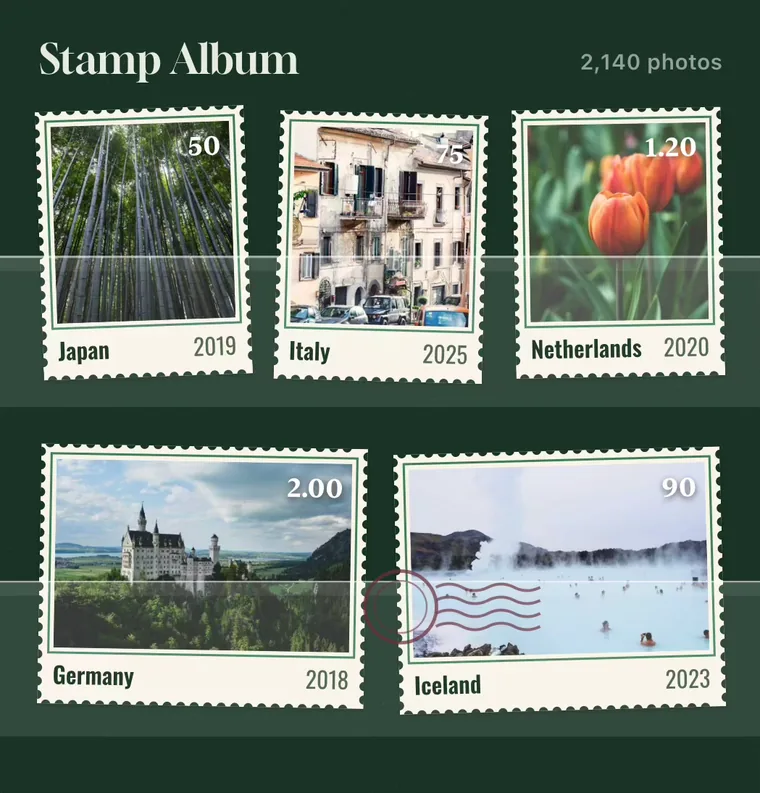
Previews show sample photos. Your widget shows yours.
HOW IT WORKS
Four steps, shown on real screens from the app.
No editor needed until you want one.
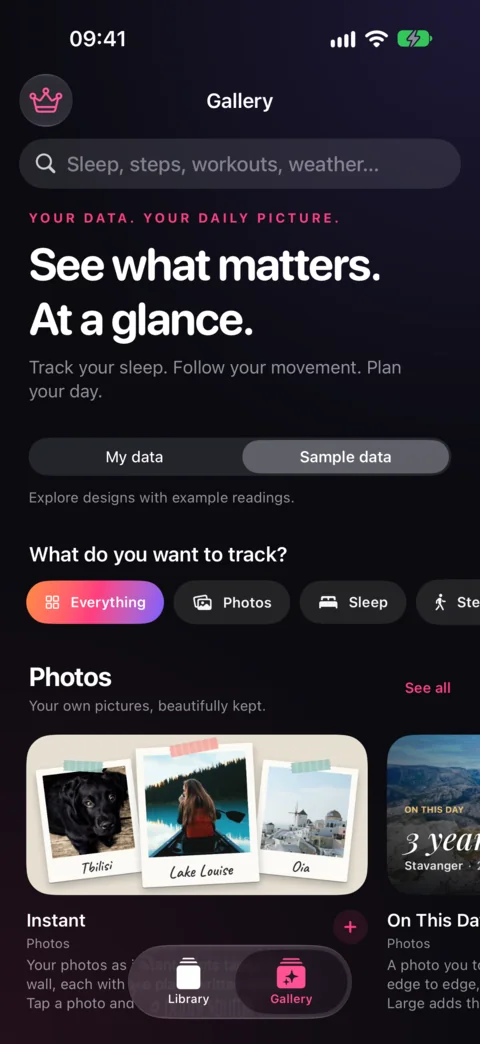
Open Gallery and browse 26 collections. Choose a size and a color story, then tap Add to Library.
Choose a design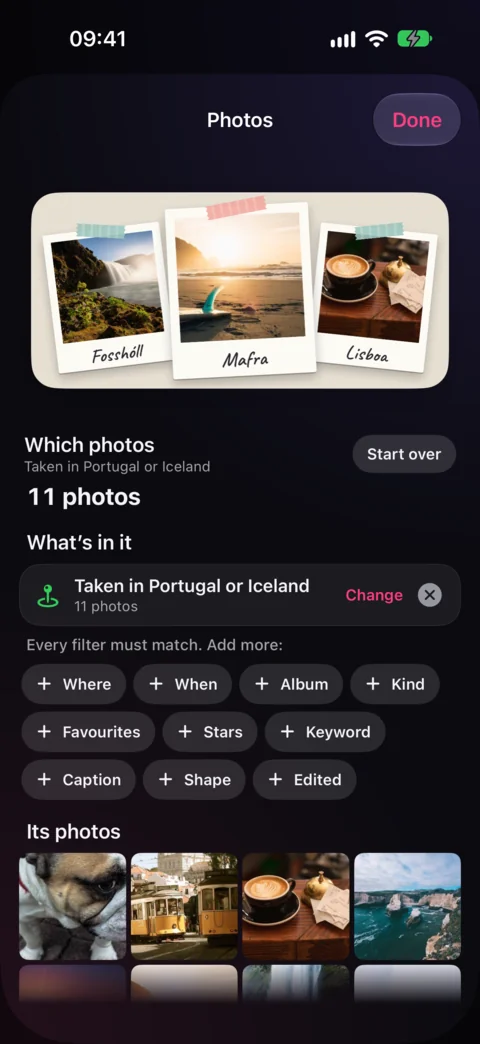
Your copy’s page in Library has Settings. Here, the widget shows only photos taken in Portugal or Iceland. No editing.
About Settings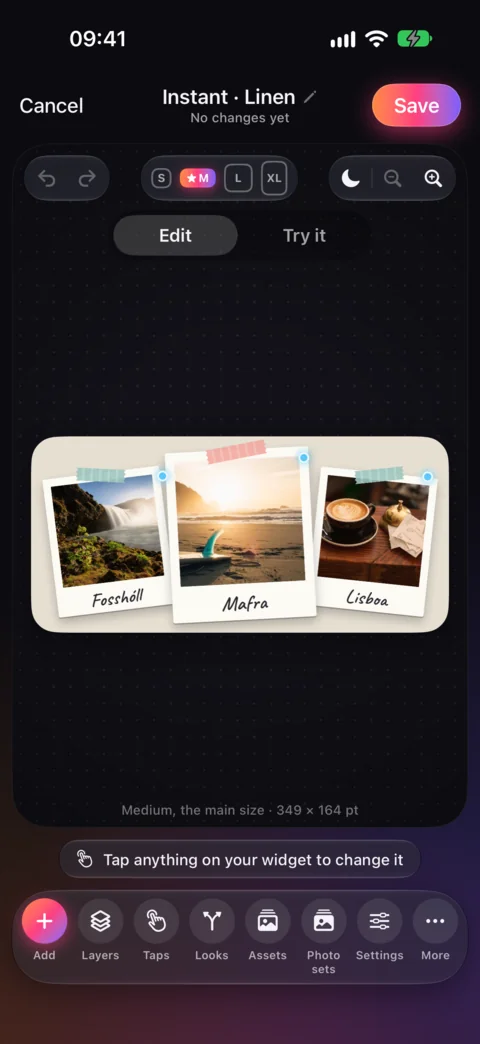
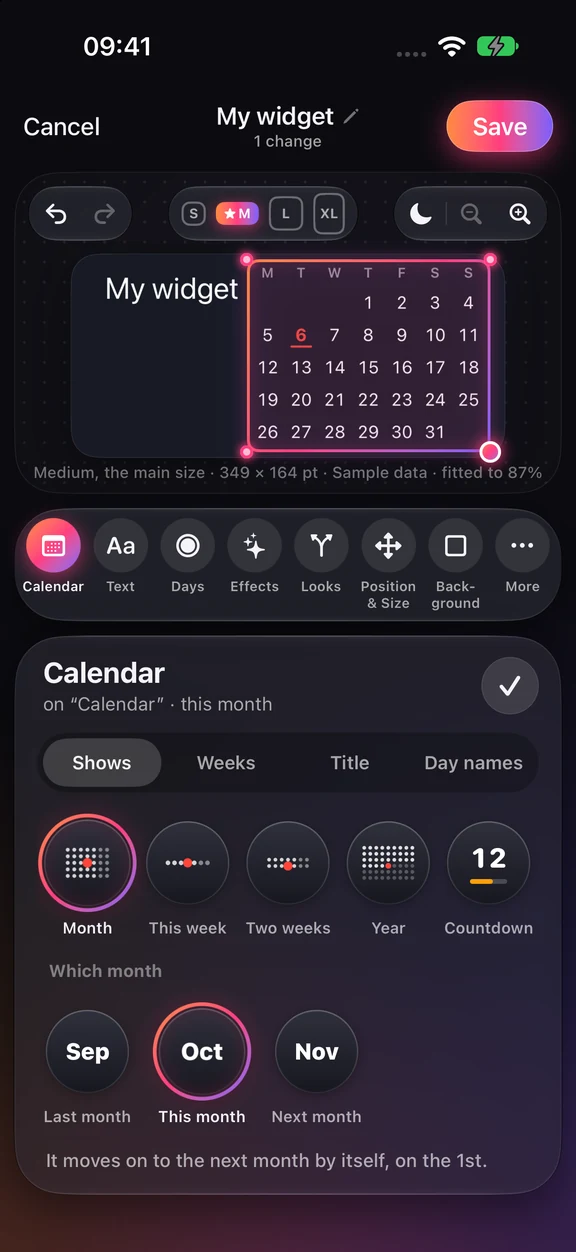
Tap Design Visually, then tap anything on the widget. Its tools appear below: change the type, move a photo, add your steps.
Tour the editor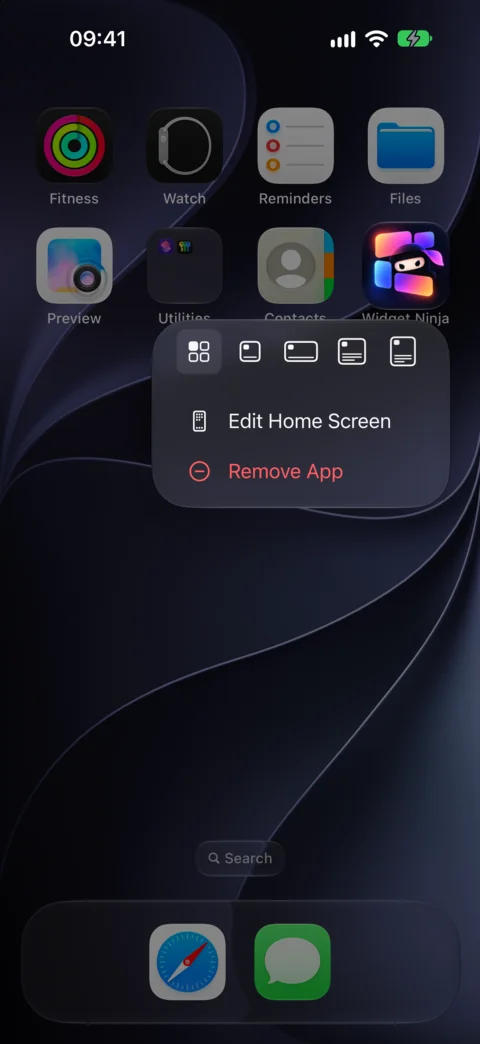
Touch and hold the Widget Ninja icon and pick a widget size. Then touch and hold the widget, tap Edit Widget and choose your design.
Home Screen stepsScreens from the app, with sample photos. Home Screen widgets come with Pro.
FROM THE GALLERY
Real designs from the app.
Every one is yours to edit.
01 / HEALTH & ACTIVITY
Steps, sleep, Activity rings, and workout history from Apple Health. Choose what you want to see.
Make a step counter widget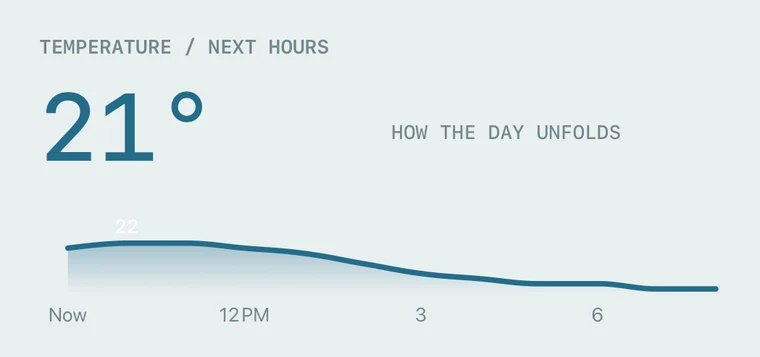
02 / WEATHER
Temperature, conditions, and forecasts. Give the weather a place on your Home Screen.
Make a weather widget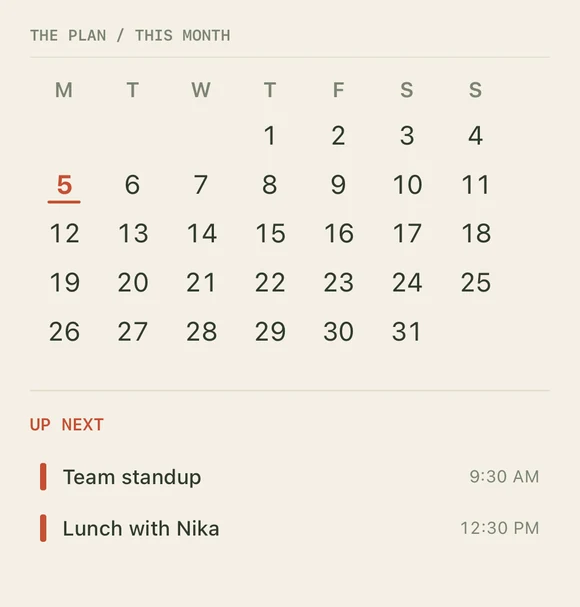
03 / CALENDARS & EVENTS
A month calendar and the events coming next. Put your plans where you’ll see them.
Make a calendar widgetGallery previews use example data, or your own with My data. Your saved widgets use the data sources you allow.
THE COLLECTIONS
223 designs, from quiet to completely over the top.
A departure board for your day. A cat that dresses for the weather.
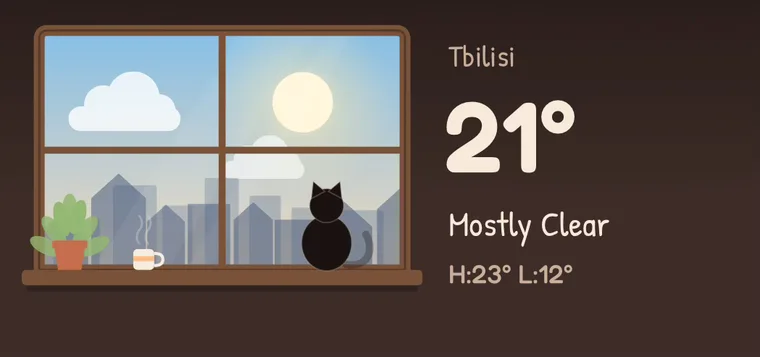

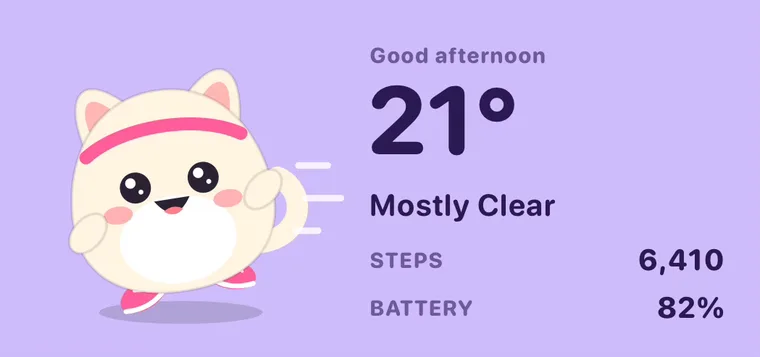

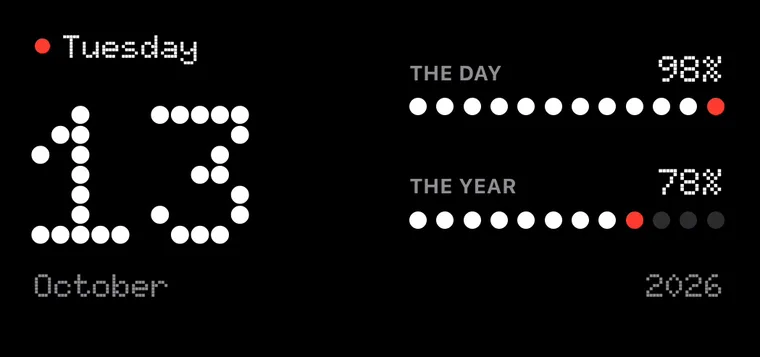
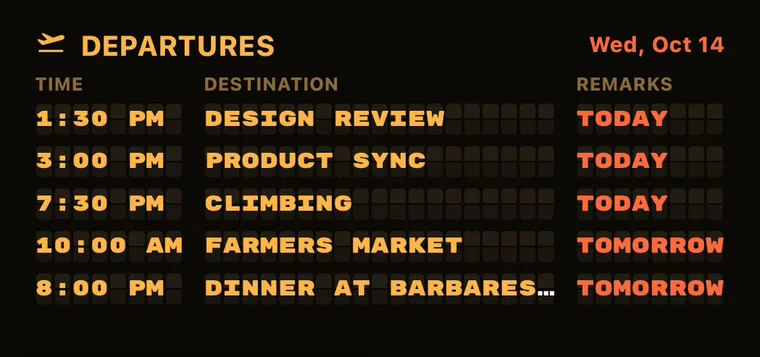
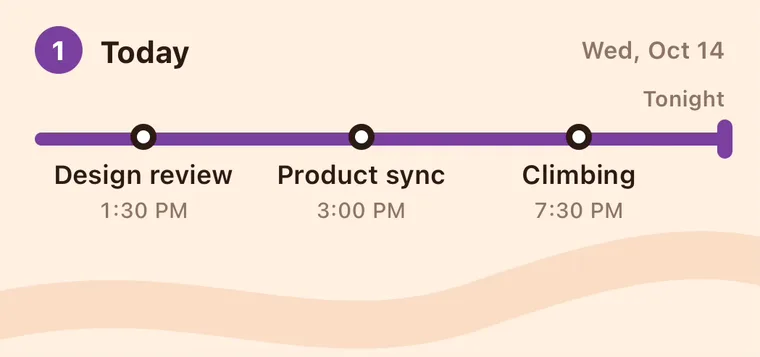
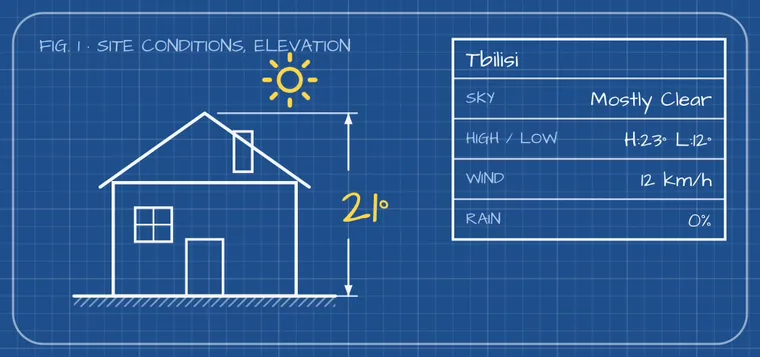
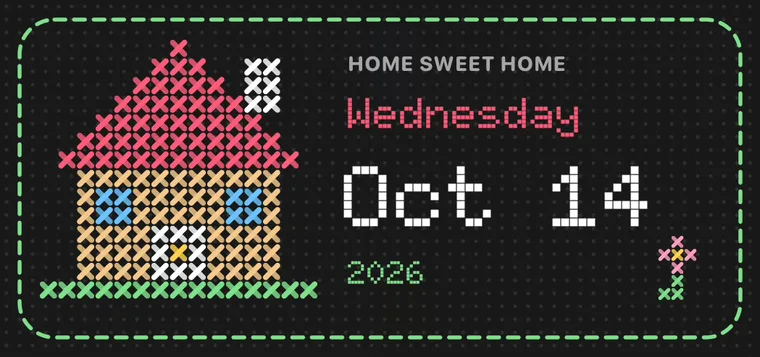
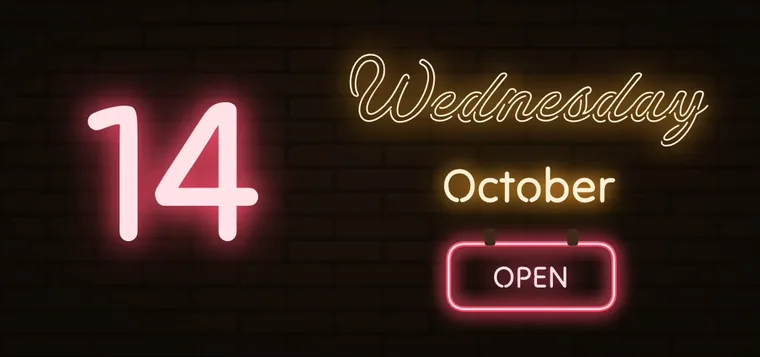
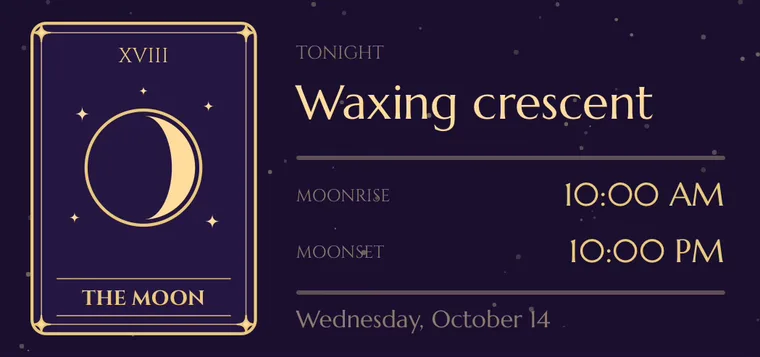
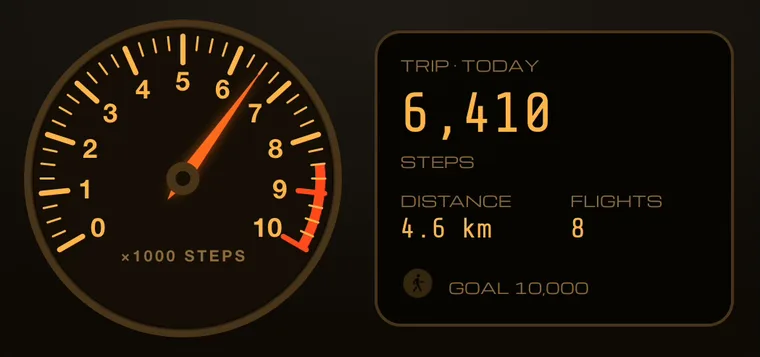
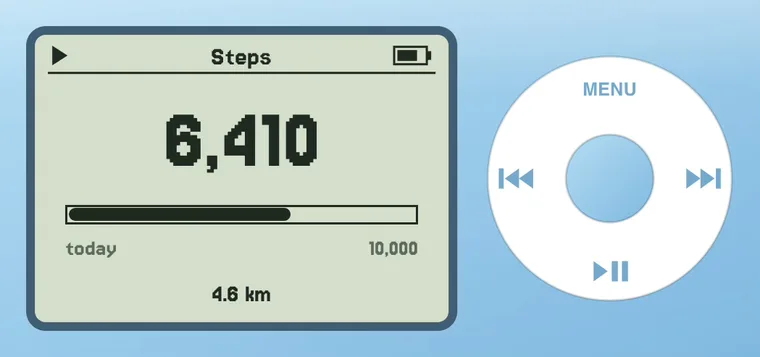
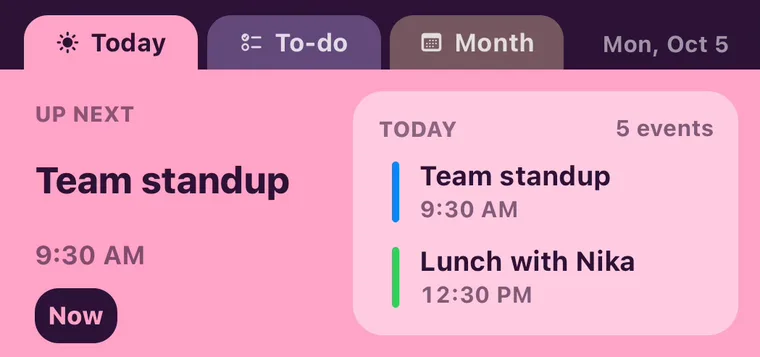
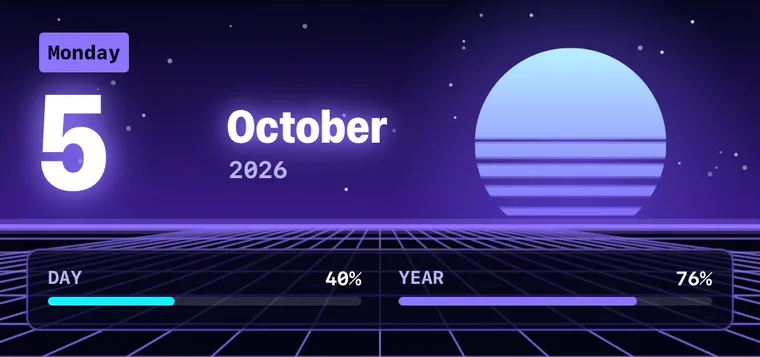
Plus Formula 1, Health, Calendar, Countdowns, Atmosphere and more. Most designs come in several color stories, and every one is yours to edit. Previews show example data and sample photos.
MORE THAN A PICTURE
Tap them. Change them in a second.
Let them follow the world outside.
Tell the AI what you want, as simple or as themed as you like. It builds the widget, looks at the result and tidies up. Then ask for changes in your own words.
Create with AITabs, pages and buttons that work right on your Home Screen. Flip to the week, open the month, or run a Shortcut.
Make a widget you can tapPick your driver, your city, your goal or your colors from the widget’s page. No editor needed. Building your own? Choose which settings it offers.
About SettingsExchange rates, earthquakes, Wikipedia’s picture of the day and this season’s Formula 1. Fresh every time your widget draws.
Add web dataLet your wallpaper show behind the widget, like glass, so it sits right on your Home Screen.
Make it see-throughTurn red when the battery runs low. Glow on the weekend. Pretend it’s raining to see what your widget does before it happens.
Learn about Looks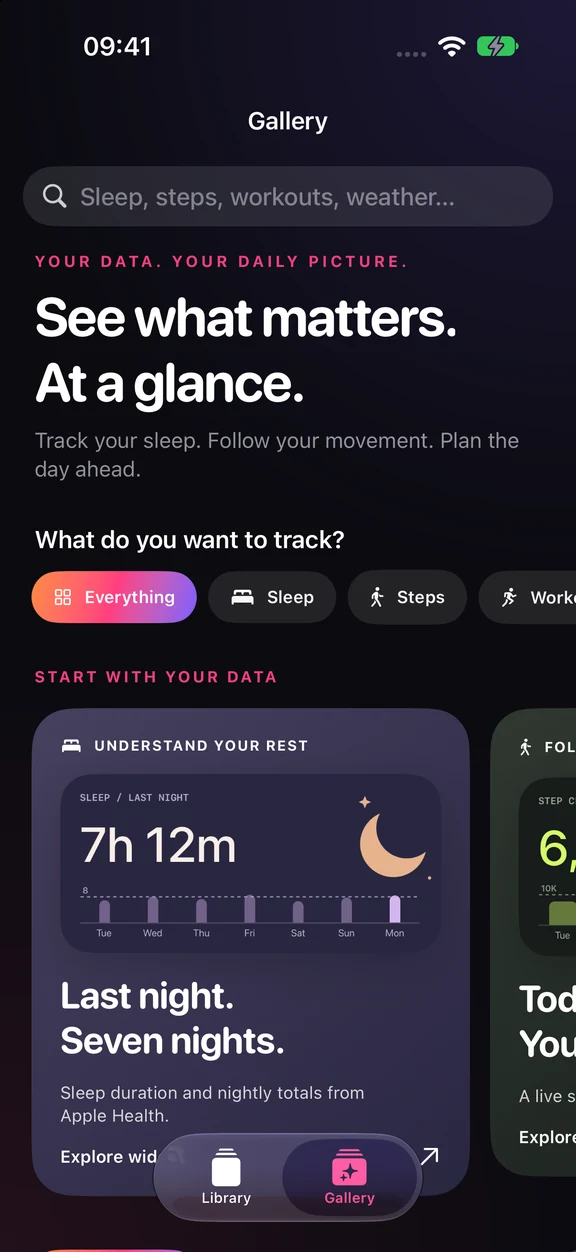
THE EDITOR
Change the type. Move a layer. Swap the data. The Gallery gives you a starting point; the editor lets you change everything else.
PRO
Browse every collection, use the whole editor and save as many widgets as you like. Home Screen widgets and the AI tools come with Pro, and Pro starts with a free trial.